Storage Directory
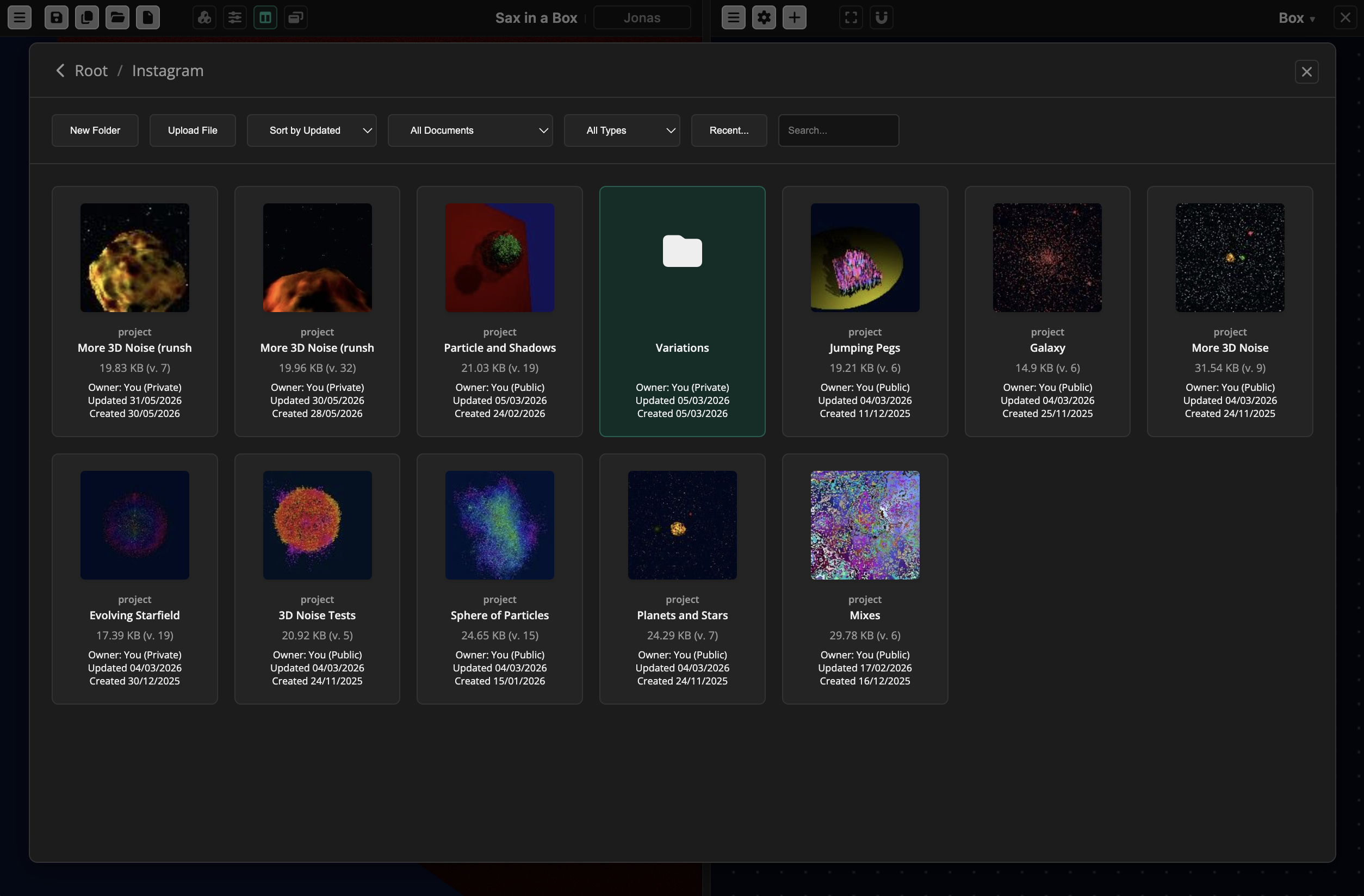
Projects you create, and all associated assets, are saved in the VerkLabs Storage Directory. All items in the storage directory are illustrated with thumbnails generated from the content when it was uploaded or saved.
Folders
You can projects and assets into folders. You can have folders within folders as necessary. To open a folder and look at its content, you click on it.
Breadcrumb Trail
At the top of the document manager, you can see the breadcrumb trail that shows you which folder you are looking at. In this case, Root / Instagram.
You can click on Root to go back to the top level, or click the back button <. The back button always brings you back to where you were before, so it might bring you into a folder, or out of a folder, and it might add or remove filter attributes.
Sorting and Filters
Sorting
You can sort the documents by when they were last updated, when they were created, or by name.
Filter by document ownership
You can filter the documents by:
- All Documents - all documents you can see
- My Documents - only includes documents you created
- My Documents: Shared only includes documents you created and shared
- My Documents: Public only includes documents you created and made public
- Shared/Public by Others only include documents you have access to but that someone else created, hence you can not update them.
Filter by document type
You can also filter by document type:
| Type | Example | Description |
|---|---|---|
| Project | 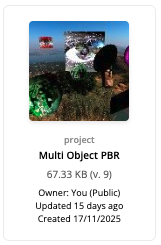 |
The thumbnail is created from the visual output of the project at the time it was saved. |
| Image | 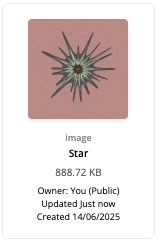 |
PNG or JPG assets. |
| Video | 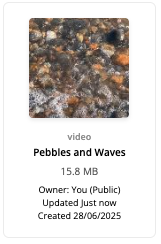 |
MP4, MOV, WebM, and other common video formats. |
| Audio | 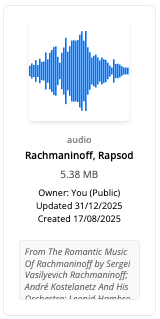 |
MP3 assets. As can be seen in this example, a descriptive note can be included with the document. |
| Model | 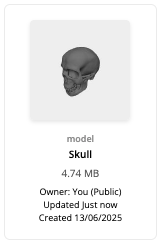 |
Uploaded OBJ models. The icon is a grayscale representation of the 3D model. |
| Instrument | (a guitar icon) | An instrument built in the node editor – see Instruments and Music. It has no picture, only its name, version and size. |
| MIDI | (a piano keyboard icon) | A MIDI file of notes, for the piano roll of a Music event. |
| Folder | 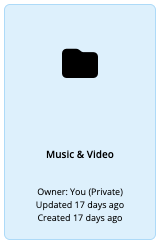 |
Folders created in the storage directory |
Search for documents by name
You can use the Search field to type in the first few letters of the name (it’s case sensitive) and hit enter. The Search is looking through all documents you have access to, and will return matches regardless of folder.
Search by recently edited documents
If you hit the Recent… button all recently edited documents you have access to will be shown. It will return matches regardless of folder.
Permissions and Access
To control read access, each document can be marked as public or private, or it can be shared with specific users. Only the creator has update and write access.
Editing Document Properties
To edit a document name and description, or its permissions, you hover over it in the document manager, and a pop-up menu can be seen:
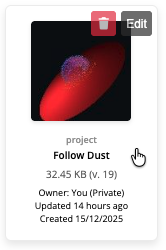
You can also access the properties form for the currently loaded project by simply clicking on its name in the Canvas Top Bar.
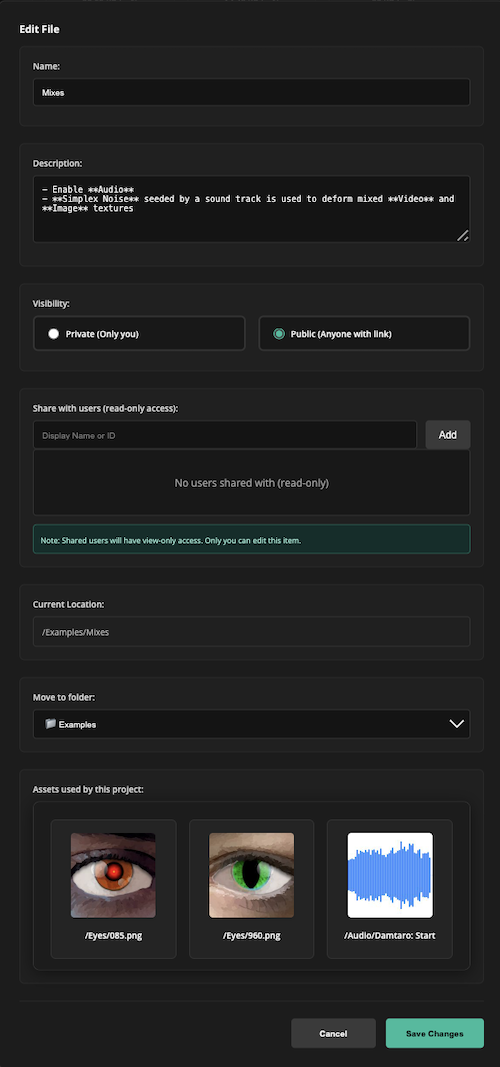
If you click on Edit, you get the document properties form for the document.
Document Properties Form
In the properties form, you can:
- Update the document name
- Update the document description
- Set permission to private (only you can see it) or public (anyone can see it).
- Share it with specific users by entering their display name. If their display name is not unique, you need to know their user ID (which they can find if they sign in and look at the Account section of the Canvas Top Bar).
- Move the document to any folder you have created.
Instruments and MIDI Files
Instruments and MIDI files are stored, shared and deleted exactly like projects and assets: each one is private, public, or shared with named users, and only the creator can update it. You save an instrument from the burger menu of the instrument’s node editor, and a MIDI file from the Music event’s inspector in the Runsheet. To use one, choose Load… in the Instruments window, or Load MIDI in the event’s inspector.
A project holds a copy of an instrument or a MIDI file, not a link to it. If you later change the stored file, projects that already use it keep the version they have – an instrument can be brought up to date on request with Update from Storage…. This is different from images, audio and other assets, which projects refer to and always show as they currently are. See Instruments and Music for details.
Project Assets
If you are looking at a project’s properties form, you can see all assets used by the project:
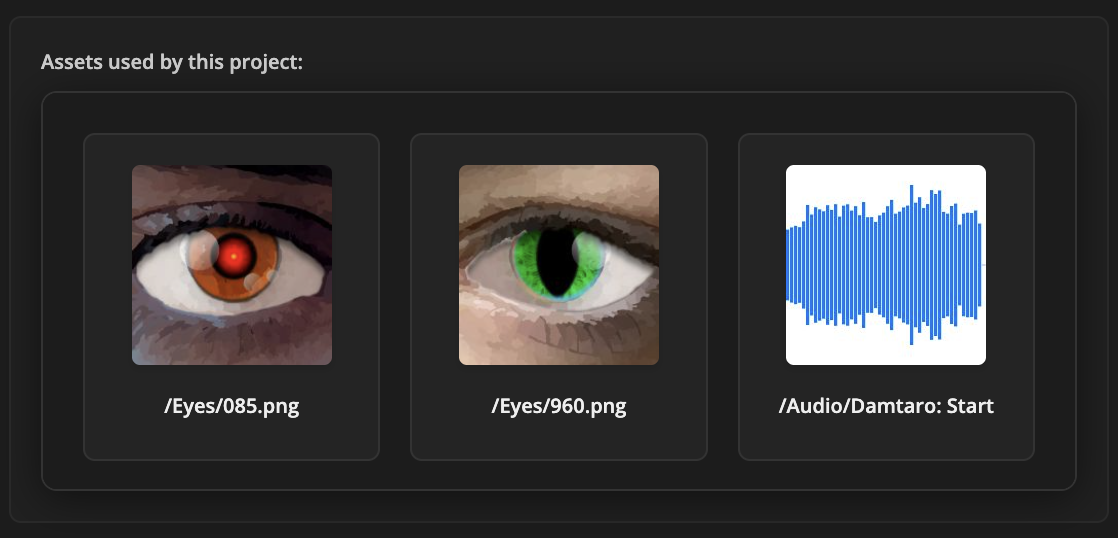
If you change permissions of a project, it does not automatically change the permissions of all assets used by the project, so if someone is looking at it but can’t access an asset, they will get an error message. The feature above can be used to go through and update the necessary assets.
By clicking on a listed asset, you open the folder where it is stored, and you can hover over it and look at its details and update its permissions.
Projects using an asset
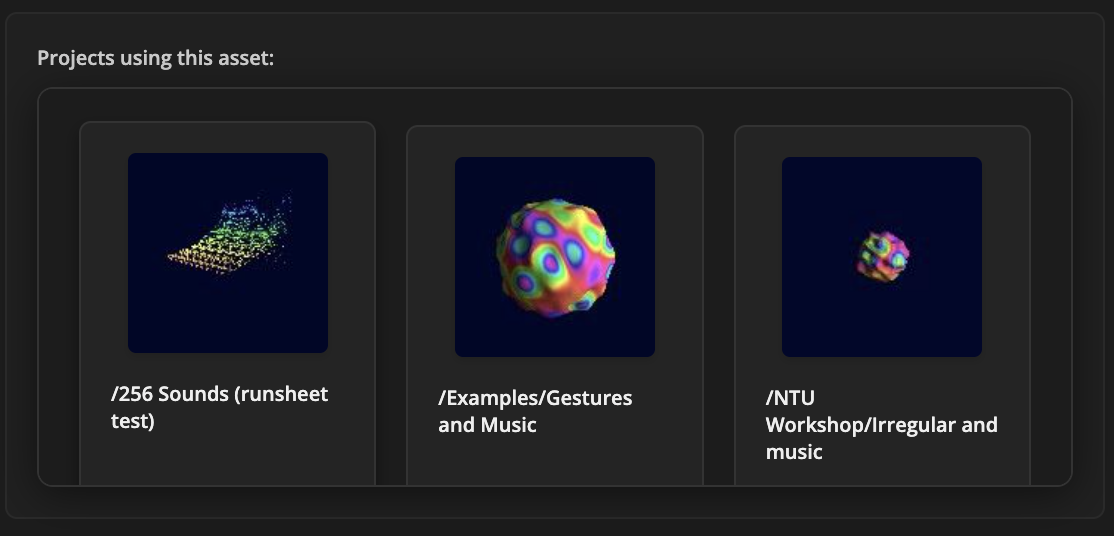
If you are looking at an asset, it will tell you all the projects where the asset is used (and that you have access to):
Deleting Documents
You can delete a project or asset by clicking the trash can icon when hovering over the document: