Scene Viewer
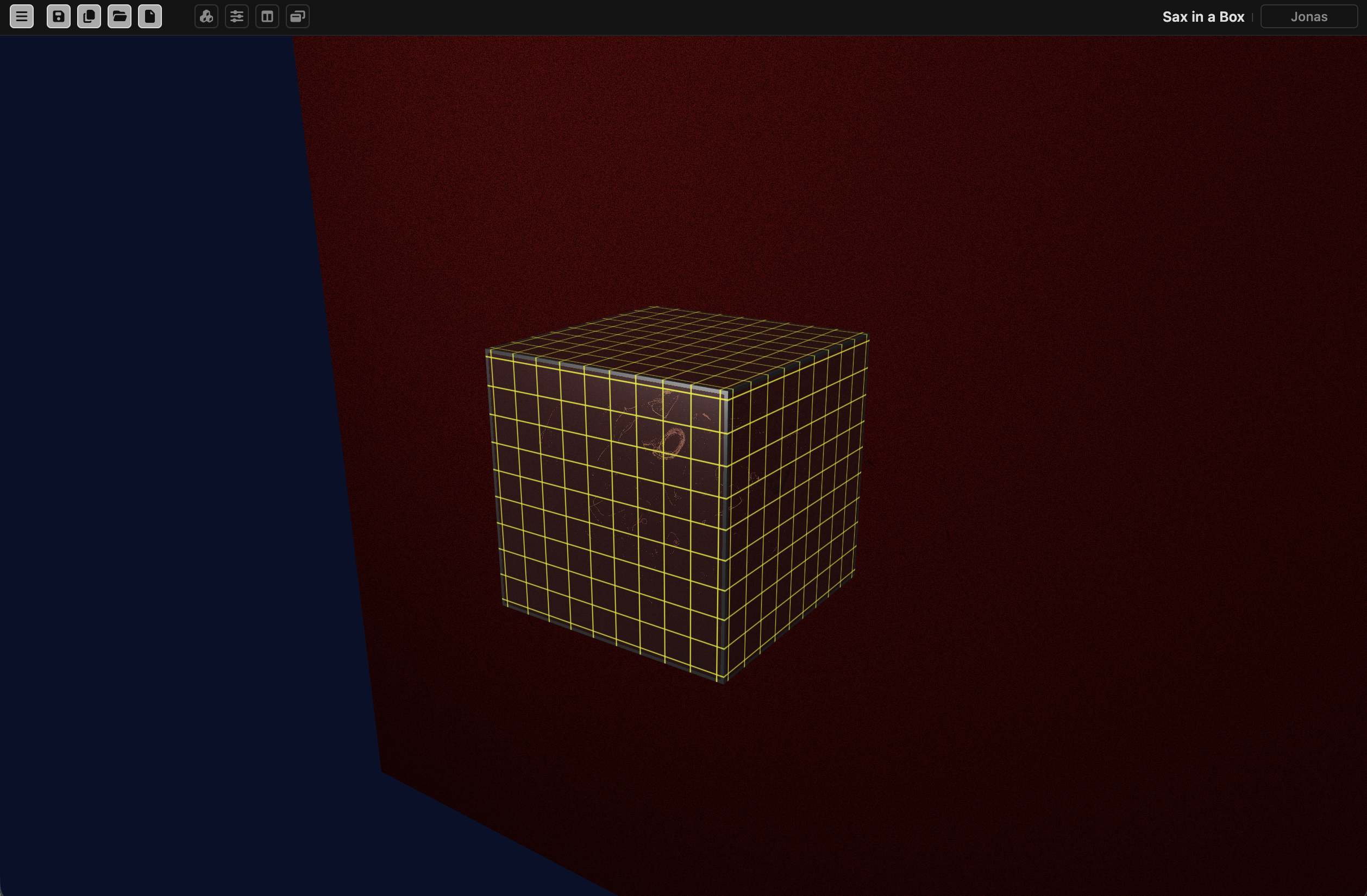
The Scene Viewer is your central window into the 3D world. You can simply enjoy the scene animations, or explore the scene interactively using mouse or track pad gestures, control the camera focus, and interact with individual objects.
If you use the share feature, your project will be seen in Viewer Mode. In Viewer Mode the objects and the project cannot be edited, and none of the editor’s title bars or drop-down menus are available – just the Media Bar – but a user can still navigate the scene interactively.
Navigating the scene
You can move the camera to view the scene from different angles. Start by clicking on an object to select it. You can then move the camera around the object, and zoom in/out.
Mouse Controls
- Left-click + Drag: Move camera around selected object
- Horizontal drag: Orbit left/right around the selected object
- Vertical drag: Orbit up/down around the selected object
- Scroll Wheel: Zoom in/out
- Scroll forward: Zoom in closer
- Scroll backward: Zoom out away
Trackpad Controls
- One-finger drag: Orbit around selected object (same as left-click drag with mouse)
- Two-finger scroll: Zoom in/out (pinch gestures work too)
Keyboard Shortcuts
- Click on an object to select it
- The selected object is highlighted with a yellow grid pattern in the scene viewer.
- If the Objects panel is open, the object is highlighted there too.
- Click + Shift both selects the object and enables the Position Editor so that you can move the object.
- If you pick one of the three arrows to drag, the object will be dragged in a straight line along X, Y, or X direction
- Zoom out if you do not see the arrows; they grow with distance.
- Ctrl-C or Command-C copies the selected object.
- Ctrl-V or Command-V pastes the copied object onto the current scene (note that within the same session, you can copy and paste objects from one scene to another).
- Double-click an object to open the Shader Editor for the object
- “ “ (spacebar) stops/starts the app
- “/” pauses/restarts camera animation.
- “F“ Open full-screen view
- “G“ Toggle grid helper
- “L“ Toggle light helper
- “E“ Open shader editor for the selected object
- 0-9 Select object 0-9