Interactions
Control your visuals with your voice, hands, and body
Transform your audio-reactive creation into a multi-input performance instrument. Connect microphone input for live vocal control, use your webcam as a dynamic texture source, and implement hand gesture recognition to manipulate your visuals in real-time.
Control visuals with your voice
- Add a Microphone node (from the SOURCE DATA section).
- Connect the Microphone node output to soundData input of the Frequency Split 5 node.
- Close the Shader Editor and then enable the microphone by clicking the microphone icon in the control bar at the bottom of the Scene Viewer.
- Start making noise!
Visuals controlled by microphone input
(source)Use the camera feed as texture
- Add Camera node (from the SOURCE DATA section).
- Connect the Camera node to the Texture Value node.
- Close the Shader Editor, and then enable the camera by clicking the video icon in the control bar at the bottom of the screen.
- Zoom in to see the camera input projected on all sides of the box.
Camera input mapped onto all sides of the box
(source)Recognize gesture in camera feed
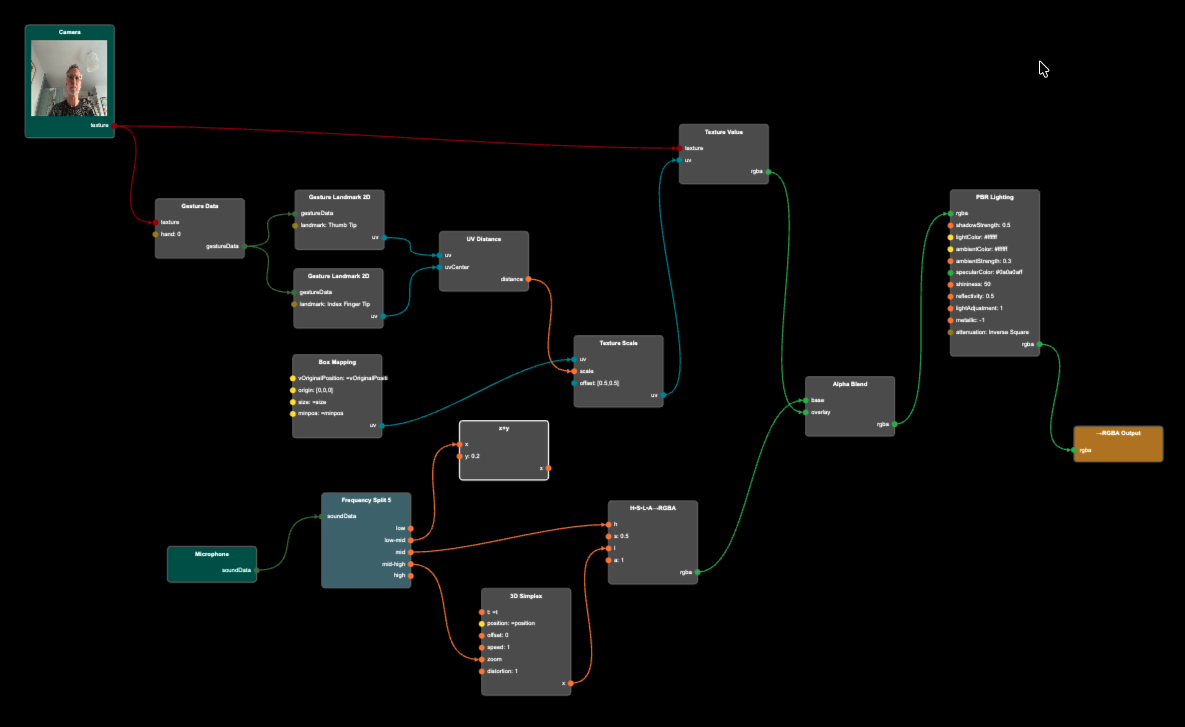
Instead of having the audio scale the image on the box, we will scale it based on the distance between two fingers: the thumb tip and the index finger tip.
- Add a Gesture Data node (from the SOURCE DATA section).
- Add two Gesture Landmark 2D nodes (from the SOURCE VALUE section).
- Connect the Camera texture output to the Gesture Data texture input.
- Connect the gestureData output from the Gesture Data node to the gestureData input of each of Gesture Landmark 2D nodes.
- Modify each of the Gesture Landmark 2D nodes, so that one references Thumb Tip and the other Index Finger Tip.
- Add a UV Distance node (from the UV OPERATIONS section), and connect one of the Gesture Landmark 2D to its uv input, and the other to its uvCenter input.
- Connect the output from the UV Distance node to the scale input of the Texture Scale node.
- Close the Shader Editor.
- Enable camera in the control bar.
- Make sure the camera sees your hand, then change hand position and open and close the thumb and index finger to see how it affects the camera image on the box.
Completed Project
Hand gesture in camera affect size of camera image on box
(source)Code